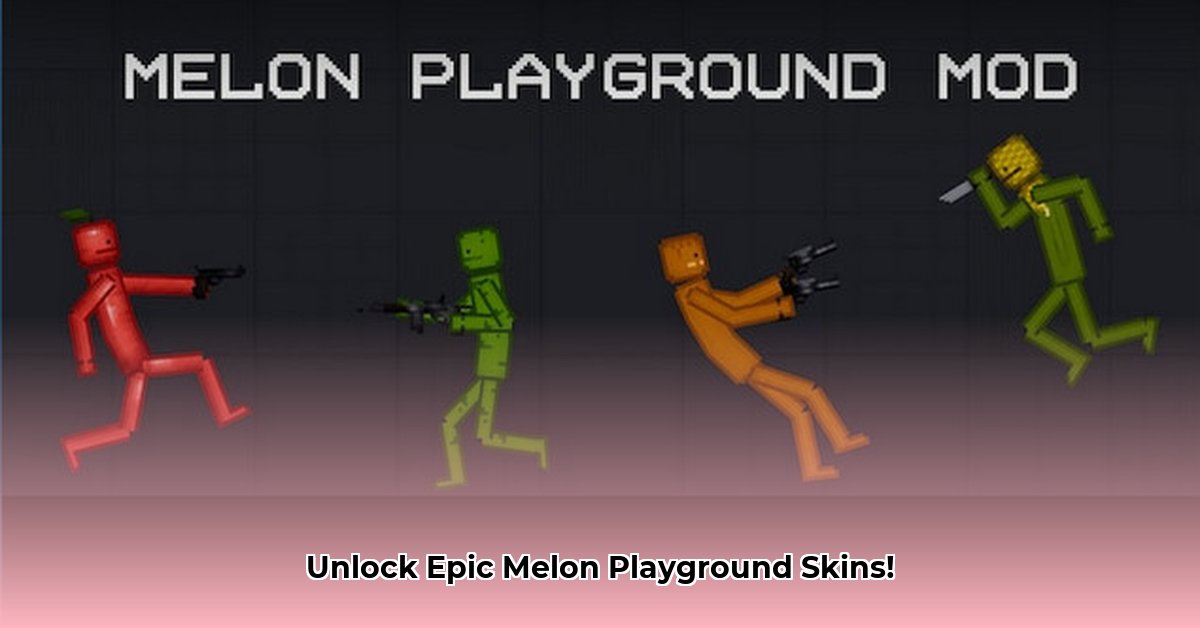
Getting Started: What You Need
Before you start adding awesome new skins to Melon Playground, you'll need a few things:
- A compatible Android device: Ensure your phone or tablet can run Melon Playground smoothly.
- A file manager app: You'll need this to navigate your device's files. Popular free options include ZArchiver or FV File Manager, available on the Google Play Store.
- Downloaded Melon Playground skins: Find these on reputable websites and communities dedicated to Melon Playground. Always download from trusted sources to avoid viruses or malicious files. Look for websites with many positive reviews.
Step-by-Step Skin Installation
Let's get those skins into your game! The process is straightforward:
Download your skins: Find a skin you like and download it. Melon Playground skins usually come as ".melmod" files.
Locate the downloaded file: Open your file manager app. The downloaded file is likely in your "Downloads" folder. It might be in a subfolder within "Downloads," so check carefully.
Find your Melon Playground mods folder: This is where you'll place your new skins. The location is typically:
Android/data/com.studio27.MelonPlayground/files/Mods.Move the skin file: Copy or move the ".melmod" file into the "Mods" folder. It's important that it is placed within the "Mods" folder itself.
Restart Melon Playground: Close the app completely and reopen it. Your new skin should now be available! If not, see the troubleshooting section below.
Troubleshooting Common Problems
Sometimes, things don't go perfectly. Here's how to address common issues:
Skin not appearing: Double-check that you placed the ".melmod" file in the correct "Mods" folder. Ensure you completely closed and reopened Melon Playground. A full restart often fixes this problem.
Game crashes after installation: This often happens if you have too many mods or skins installed. Try removing a few and see if that resolves the crash. A poorly-made mod can sometimes cause crashes for the entire game.
Difficulty using the File Manager: Navigating Android's file system can be tricky. Search YouTube for "Android file manager tutorial" for helpful videos.
Choosing and Managing Skins
Here are some tips to ensure a smooth experience:
Preview before downloading: Many websites allow you to preview skins before downloading. This helps you avoid downloading skins you don't like.
Read reviews: Check what other players say about a skin to avoid poorly made or problematic skins.
Don't overload: Adding too many skins at once can slow down or crash your game. Start with one or two, and add more later.
Regularly manage your skins: Periodically check your "Mods" folder and delete unused skins. This prevents conflicts and keeps your game running smoothly. Think of it as spring cleaning for your Melon Playground!
Frequently Asked Questions (FAQs)
Q: Where can I find safe Melon Playground skins?
A: Look for reputable websites and online communities focused on Melon Playground modding. Prioritize those with many positive reviews and active discussions.
Q: My game crashes after installing a skin. What should I do?
A: Try removing recently added skins and restarting the game. Too many skins, or a faulty skin, can cause crashes.
Q: My new skin isn't working. What should I check?
A: Make sure you placed the ".melmod" file in the correct "Mods" folder and restarted the game.
This guide should help you successfully install and manage Melon Playground skins. Happy modding!
⭐⭐⭐⭐☆ (4.8)
Download via Link 1
Download via Link 2
Last updated: Friday, May 16, 2025